If STL is available
Export the mesh and reopen it in your slicer. Confirm dimensions by measuring a known distance.
File conversion guide
Understand the path from an AI-generated concept to STL geometry, with mesh checks and practical steps for slicing.
Direct STL export from Studio is pending verification.
Choose the path that matches the options your tool shows.
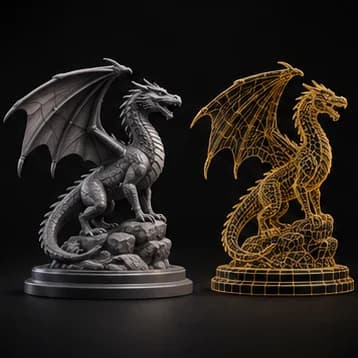
File checks
STL stores unitless coordinates. Confirm that the slicer interprets them in your intended physical unit.
Inspect for open edges, flipped normals and unwanted connections. Verify that the final shell represents the object you intend to print.
STL primarily stores triangle geometry. Use a format that carries your required materials if the next step depends on them.
FAQ
Direct STL export has not been verified. Check the current options in Studio.
Print success depends on mesh integrity, scale, wall thickness, supports and printer settings.
Set a known physical dimension in your modelling tool and verify it again after importing into the slicer.